Wednesday, 16 March 2016

Getting started with MEAN stack

MEAN stack


MEAN stack which is the short form for MongoDb , ExpressJs AngularJs and Nodejs is the stack that is currently gaining a lot of popularity among the Web Developers.

The best thing which I personally feel in this stack is that all of the development happens in only one language i.e JavaScript.

Since all the above standing for MEAN are JavaScript libraries hence the development environment is very lightweight and doesn't require learning many things. You master the complete stack at once.

Taking the stack's components individually, let's start with Nodejs:

Nodejs is the server side language. This is the language that you will be using on server to handle the requests which your angular app will be sending to you. Its completely in Javascript and also comes with a package manager called npm(Node package Manager).

NPM is very helpfull in setting up your project.


Going over to ExpressJs:

    ExpressJs is a very lightweight framework for NodeJs that helps you in shortening the entire code you write  by giving you inbuilt functions to perform the tasks. Also this is the part you will rely on for routing and other such tasks.

AngularJs:

AngularJs is what I would regard as the best thing that any developer could do with Js. Talking about it , from the ground up it feels so powerful. With the MVC architecture its data binding between the controller and view is so awesome. There is so much to talk about Angular that this short intro is not enough.

MongoDB:

MongoDB is a no SQL database designed to be used with the MEAN stack. It is no SQL means that it doesn't store the data in the form of tables and rows but stores them in JSON (JavaScript Object Notation) compatible form. Also it has enhanced features like data sharding which lack in mysql.

Some links to start learning Mean Stack:


  • First of all, have a good grip on HTML,CSS and JavaScript.


  • Start by learning basics of angular by reading the docs on the website of AngularJS


  • Here are some tutorials from youtube that I found good: MEAN stack Intro


  • This is the link for a series of 5 videos that will teach you to make a very nice contact list app : Part (1/5) Building a Contact list App


For any further questions please leave in the comments section below. Have a great MEAN time.


Tuesday, 16 February 2016

Some interesting C++ Tricks

Awesome C++ tricks

1). Print anything in C++ without using semicolon:
Answer:

This is a very common C++ question which sometimes may be asked by any of your friends or given as a challenge to you . But trust me after doing this problem you will say "It was nothing at all."

Here's the code:

#include <iostream>
#include <cstdio>
using namespace std;
int main(){
    if(printf("Hello World")){
        //and you are done
}
}

Understanding the program:

For doing this question a person must know about the usage and working of the printf and scanf functions.

printf() function not only prints on the screen but also returns the number of characters printed by it on the screen. Now in this case any string inside printf returns a value greater than 0 to the if condition, which makes it true and hence the program prints on the screen without any error and semicolon!!.

2). Printing a semicolon without using the semicolon:

Answer:
This question is almost similar to the above question but here the only knowledge required is of the ascii value of the special characters like semi colon. 

As we know the ASCII value of semi colon is 59 hence in the above question, just by replacing the Hello world with {  printf("%c",59)  }

Friday, 5 February 2016

Gnome : The Desktop Environment for UI Geeks

Hey friends, this post is focused on introducing you all to the Gnome Desktop Environment, which is focused on providing the users a charming User interface along with powerful workspace like capabiities.

So let's start by the lock screen:

Default lock screen


The lock screen in Gnome is clean and simple which shows you the pending notifications and also the time along with date and day. The top bar shows the username and also the battery and connectivity status.

Coming to the desktop part of the gnome, there's not much to see when it logs in. By default the desktop icons are hidden and hence you are greeted with a blank screen featuring your wallpaper.

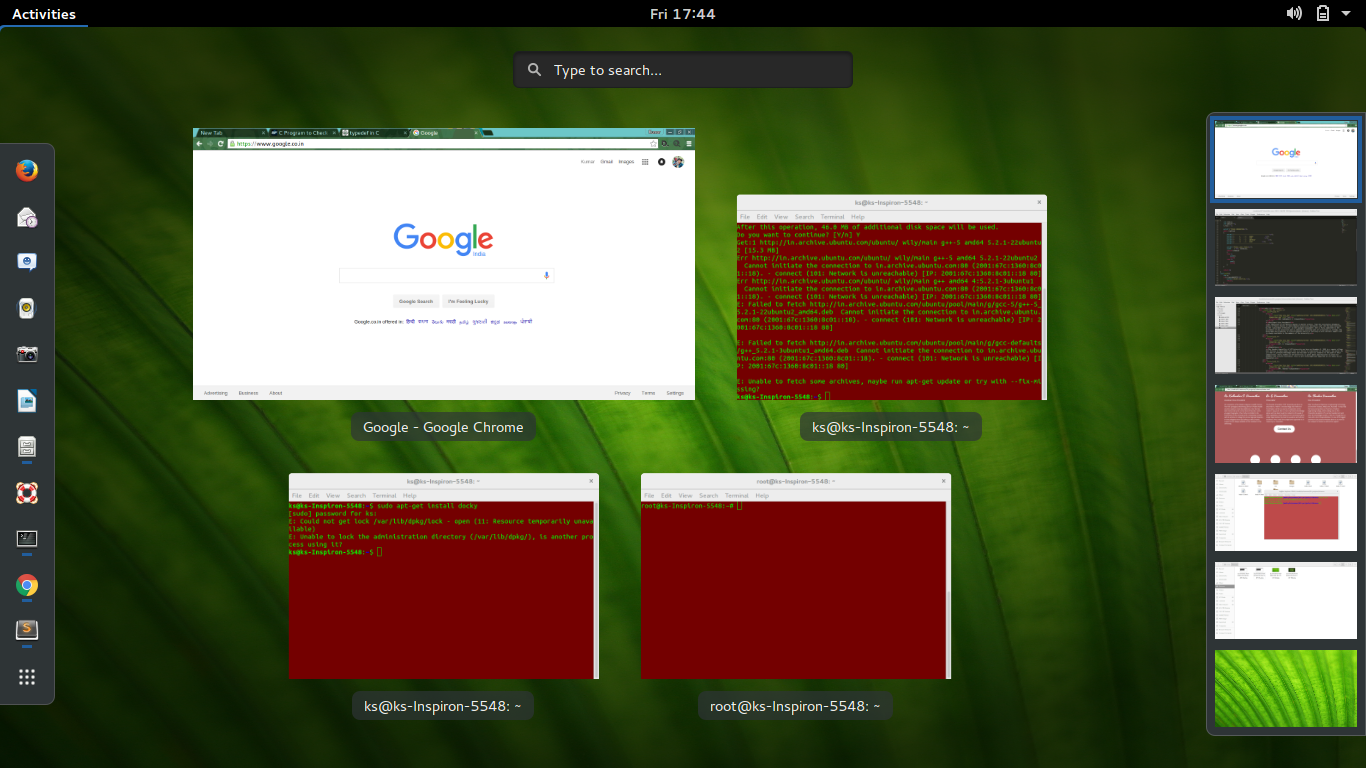
But upon clicking the super(Win) button you will see an interface that gives you the access to multiple desktops and also to all the apps installed.


The overall UI is so clean and refreshing that you will not feel that feeling of using linux as you would on a debian machine.

This Desktop environment can be downloaded as a default with ubuntu or can also be installed on your existing unity or KDE desktop environment by using terminal. Stay tuned for a further post about instructions on this process.

Tuesday, 2 February 2016

The text editor you will fall in love with

A C code being written in Sublime Text 3

From the time when we start learning HTML , while most of us start on Windows or a MacBook having notepad and TextEdit respectively.

The problems with this texteditors comes when you have to code in a language of your choice.

Things like proper indentation, The appropriate termination of braces, syntax highlighting and most of all the syntax completion, are the most important things we look in a god text editor.

SUBLIME TEXT

As the sublime text makers say "The text editor you will fall in love with", this is one text editor that people around the world prefer because of its portability and scalability.

Trust me when you start using sublime text , you will regret that why in the world you used notepad!


Click here to download it today and start coding.

Monday, 1 February 2016

Some fun with terminal

Some funny terminal commands on linux that will make you awe-struck

People generally think that the linux terminal is only a weird black box which most of the hackers use, but you know what its just a way to represent the GUI functionality without the need of GUI.
1)
        
For getting  a steam locomotive run through your terminal window just type in the command by first pressing ctrl + alt + T to open the terminal and then type sudo apt-get install sl.
This will install the package on your ubuntu machine.

Now you can execute this package anytime you like by just typing in 'sl' and press enter.
A steam locomotive will run through your terminal screen.
Well its just so funny to watch it.


Get ready for some more awesome posts on the linux terminal.

Saturday, 24 October 2015

A Very Early Flavour of Android 6 Marshmallow on the Oneplus One


Alpha version of CM13 on Oneplus One

Since past few weeks the INTERNET is flooded with the arrival of Nexus 5X and the 6P, and what comes with them is the Android M(Marshmallow), the next sweet version of Android(no pun intended!). Those who have Nexus 5 have got or are getting the OTA update of the latest version of Android but for those who don't have a Nexus, check with your mobile company for the availability of the update.

And.. The Oneplus One..users rest assured beacuse the team at CyanogenMod has already started to prepare for the Android M release with their next version of CyanogenMod namely CM13. 

The team has uploaded the very early source code on GitHub which any one can try on their Oneplus One! One thing to note is that this is a very very early Alpha version of the release and is not an official release. So, there are many bugs including:
  • Music player unable to play the music
  • Now on tap not working
  • Frequent error message showing System UI has crashed
Therefore its all on you if you want to update or not! Here are a few screenshots to check from my Oneplus One:


Saturday, 17 October 2015

Here's How to change brightness in Ubuntu 14.04!

Hey, have you switched just now to Linux Ubuntu and wondering that your keyboard buttons or the Linux brightness control options are not working? If this is the matter then don't worry the terminal in Linux is your friend that will never leave you alone!

Open terminal through the application menu or by pressing the keyboard
 combination: Ctrl + alt + T.


So now that you have opened the terminal you would be welcomed by a screen that reads your username. Type the following command into the terminal with the value of brightness being written after the word echo. Just change this number and viola! Your brightness gets changed to the value you just set it to.


Now isn't that a bulky line to write everytime you want to change the brightness of your screen! Don't worry! Terminal knows about this and therefore when you open a new terminal window, the next time you want to change the brightness just press Ctrl + R and type brightness and immediately the whole line of code will come automatically; then just replace the value with the one of your choice and it will work.

Have fun with Ubuntu! Do comment for any queries.